Property Inspector
The Property Inspector panel provides detailed configuration options for selected components in the Synergy IDE, allowing users to adjust general settings, appearance, behavior, and events.
The Property Inspector is a contextual panel that appears on the right side of the Synergy IDE. It dynamically updates based on the selected component in a form or flow file, offering access to editable properties, event handlers, and configuration options.
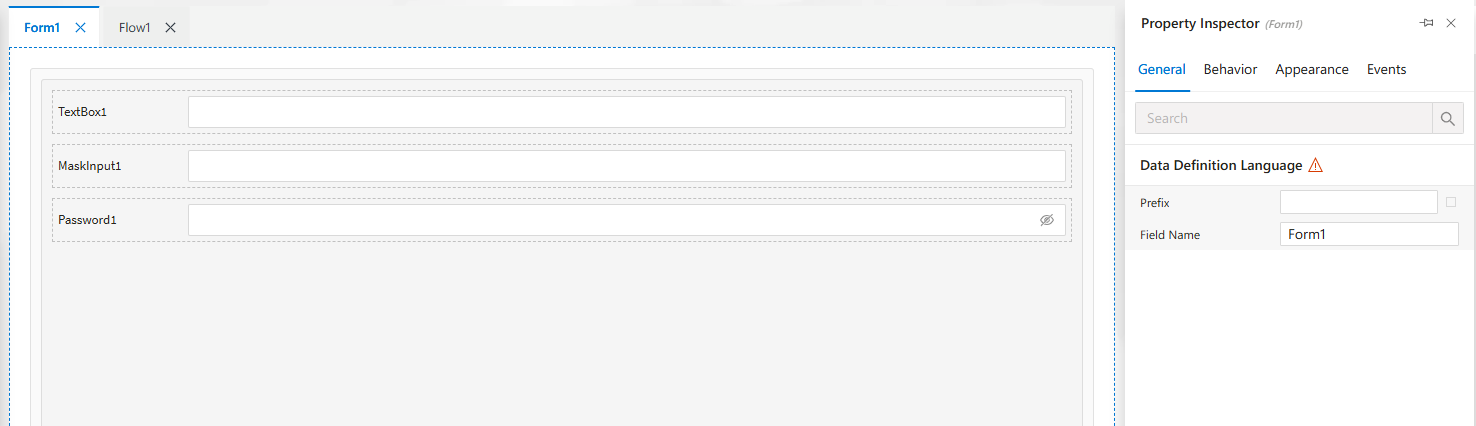
Tabs in Form View
When a form component is selected, the Property Inspector displays four tabs:
-
General
Configure name, label, default values, and layout.
Component-specific configurations such as binding keys or formats. -
Behavior
Toggle visibility, required status, read-only state.
Set dynamic behavior rules or conditions.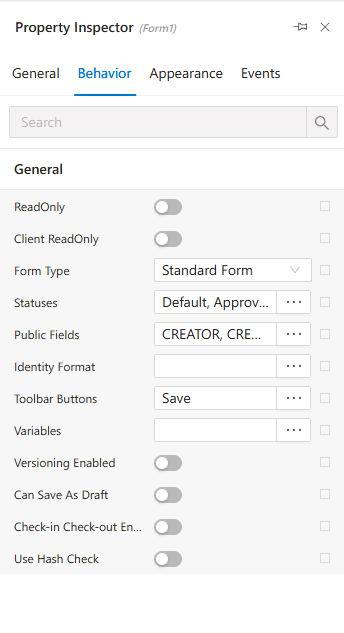
-
Appearance
Adjust styles like color, size, padding, icons, and alignment.
Customize the UI feel and spacing.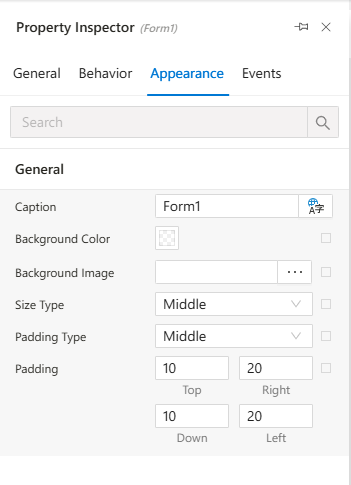
-
Events
Define event triggers likeonChange,onLoad,onClick.
Link handlers to custom or built-in logic.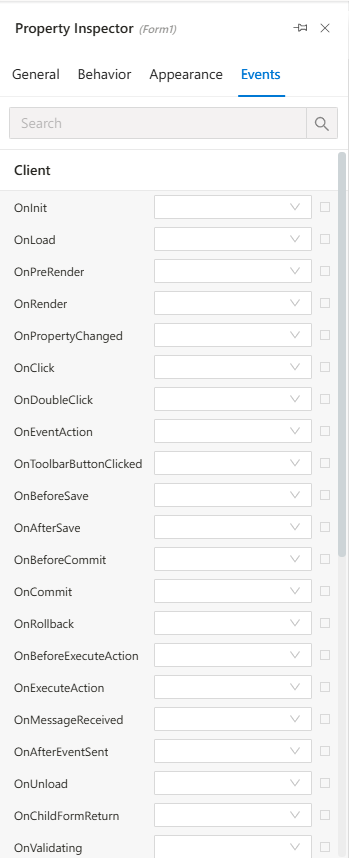
Tabs in Flow View
When editing a flow file, the Property Inspector adapts and shows:
-
Properties
Node-specific settings, roles, action types, conditions, and outcomes.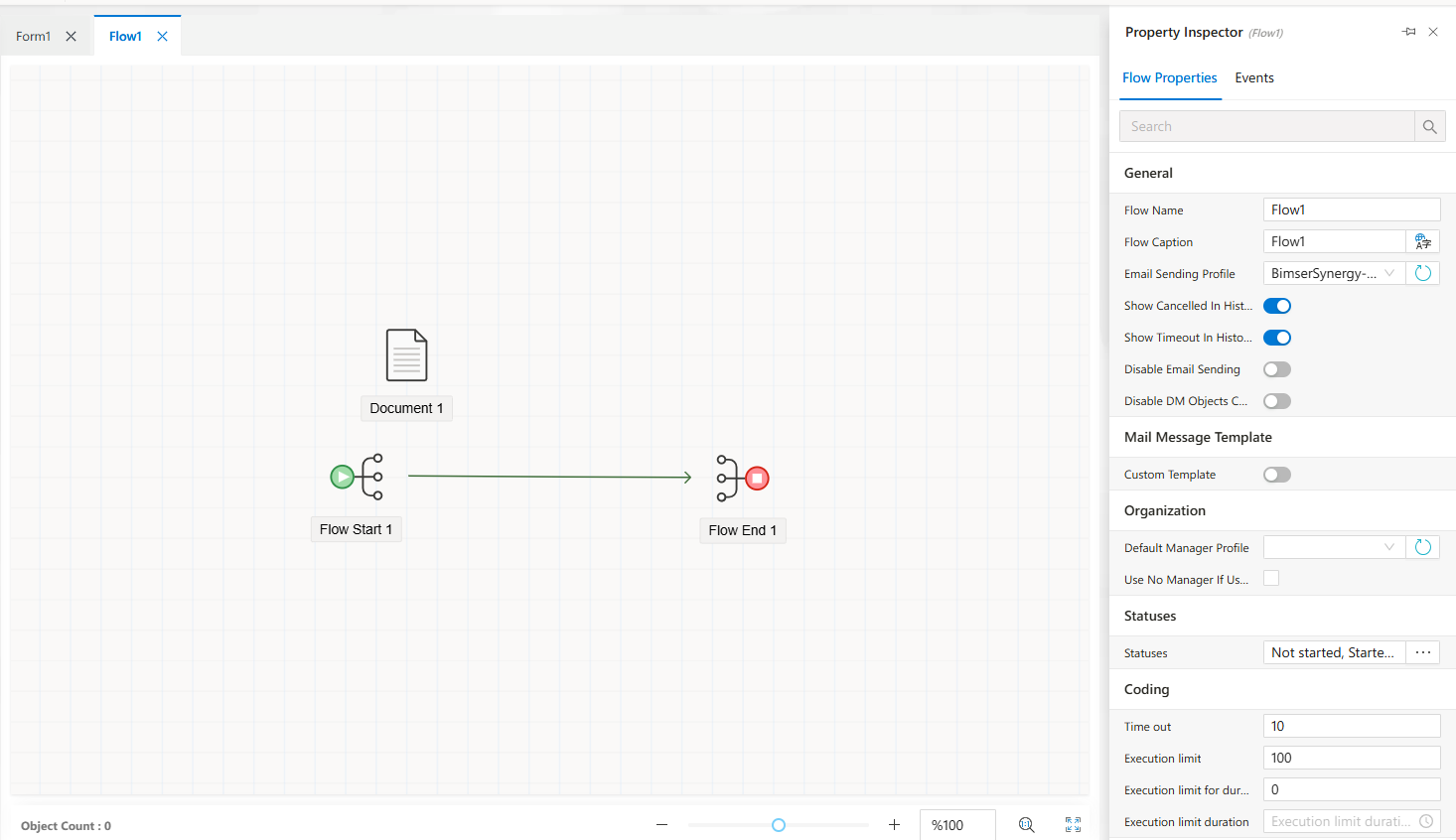
-
Events
Define automation logic likeonStart,onComplete, or conditional scripts.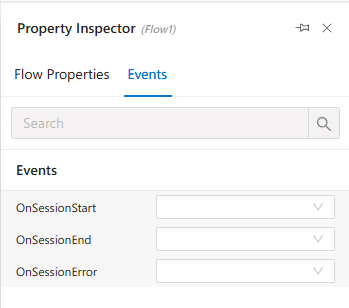
Behavior When No File Is Selected
If no form or flow file is open, or no component is selected, the Property Inspector panel is empty and inactive. It only activates when a valid design surface is focused.
Features
Context-Aware: Automatically switches tabs based on selection.
Live Update: Reflects real-time changes in the editor.
Categorized Tabs: Separates general, visual, behavioral, and event-driven properties.
Custom Logic Integration: Allows linking events to external functions or script blocks.
#linkDocument (DeveloperGuides.IDE.TopMenu.View.PropertyInspector) #linkDocument (DeveloperGuides.IDE.PropertyInspector.HowTo)
See Also
FAQs
- What Is the Property Inspector?
- Can I reset a property to its default value?
- Why are some properties in Property Inspector disabled?
- Can I edit properties in the Property Inspector?