Flow Manager
The Flow Manager under the Tools menu opens a modal that allows managing flow-level metadata such as name, description, return type, and visual style.
Overview
With the Flow Manager modal, developers can:
- Rename a flow
- Set or update return types
- Provide descriptions and layout settings
- Manage visibility and appearance settings
It provides centralized management for flow configuration and metadata editing.
Flow Manager
The Flow Manager panel helps list and manage workflows created within a specific project or flow. It also offers version upgrade and advanced filtering capabilities.
The Flow Manager is a powerful tool that allows you to view and manage flow instances initiated within a specific project. Its main functions include:
- Viewing active or completed process records
- Upgrading the package version of an existing process
- Filtering records based on multiple criteria
- Searching by the user who started the flow It is ideal for advanced users, developers, or administrators managing multiple workflows in Synergy IDE.
Main Table View
When you open the Flow Manager, you will see a table listing all ongoing or created processes under the selected project.
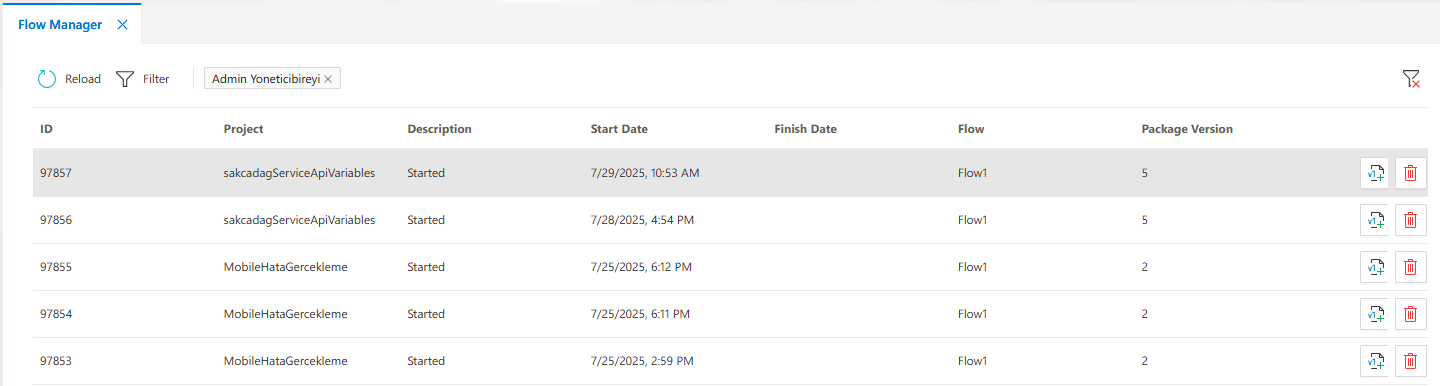
Displayed Columns:
ID: Process IDProject: The project to which the flow belongsDescription: Flow statusStart / End DateFlow: Name of the flow definitionPackage Version: Current version of the flow package
You can use theRefreshandFilterbuttons above the table to update data or apply filters.
Version Upgrade
You can upgrade a process instance to a newer version of the flow design by clicking the version upgrade button in the relevant row.
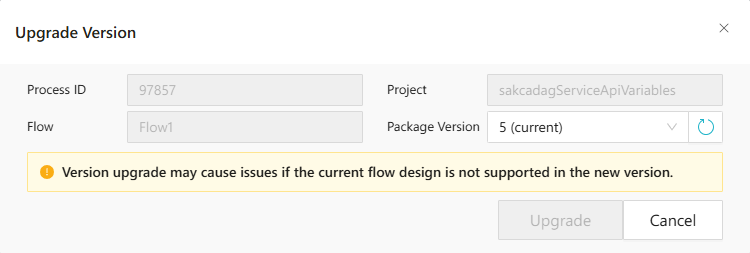
Warning:
Upgrading to a new version may cause issues if it is incompatible with the current structure of the process.
Advanced Filtering
Click the Filter button to open the filtering panel.
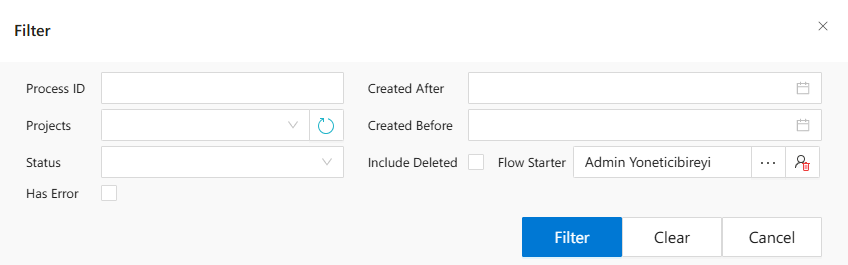
You can filter records based on the following fields:
Process IDProjectsFlowsStatusCreated After / Before(calendar supported)Include DeletedFlow Starter(search by user)Has Error
Status Filtering
You can filter processes based on their current status:
Available options:
- Started
- Completed
- Approved
- Rejected
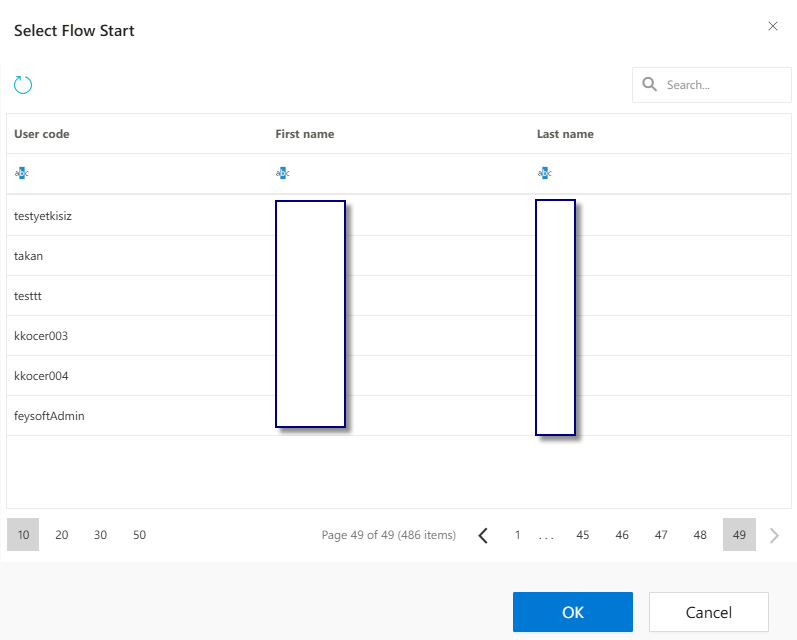
Filtering by Flow Starter
You can also filter records by the user who initiated the flow: This is useful in large projects to trace who started which process.
After Filtering
Once filters are applied, the results are displayed in the main table. Click the Clear button to reset all filters.
Summary
The Flow Manager panel gives users full visibility and control over flow instances. It allows tracking, version upgrading, and in-depth analysis. Use filtering tools to find specific records easily and perform version upgrades only when necessary.
FAQs
- Can a flow be changed after it has started?
- Can I filter flows by the user who started them?
- What happens if a flow fails after version upgrade?
- What does version upgrade mean in Flow Manager?
How To's
- How to upgrade the flow version of a process?
- How to find flows started by a specific user?
- How to filter processes by creation date?
- How to reset filters in the Flow Manager?