Document Configuration
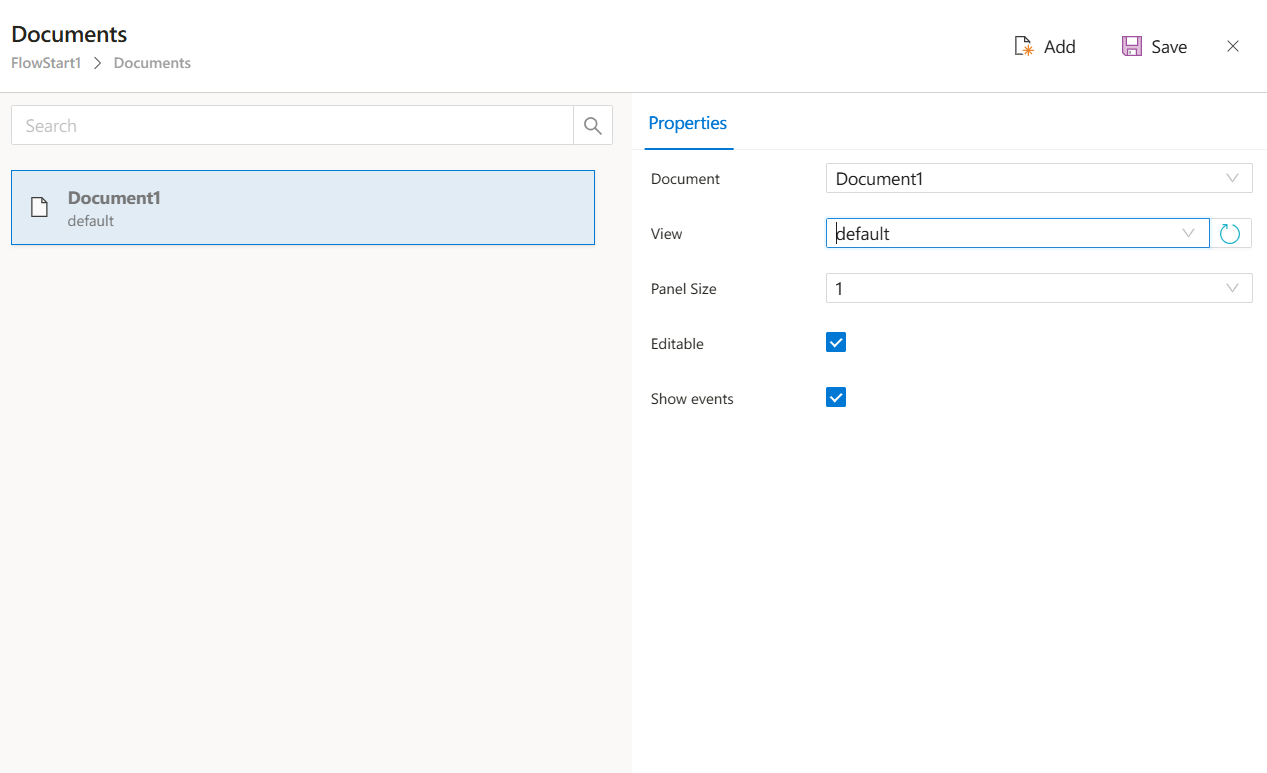
The Documents screen for FlowStart allows you to define the main document used in a workflow and configure its view, layout, and interactivity.
In Synergy IDE, the Documents screen inside the FlowStart node is used to bind a document definition to a workflow. This allows the flow to access, display, and manipulate business data during execution.
Once a document is selected, additional layout and display options appear.
Document
A dropdown to select the document definition (e.g.,Document1,Invoice,LeaveRequest) that will be associated with the flow.
Each FlowStart can be connected to one primary document.
View
After selecting a document, theViewdropdown becomes available.
It lists predefined views for that document (e.g.,default,readonly,mobile, etc.).
These views define how the form is visually rendered during flow execution.
If no view is selected, the system may default to the default view if available.
-
Panel Size
Determines how much space the document view occupies on the screen (especially in multi-panel layouts).
Common values:1,2, or3— higher numbers indicate wider panels. -
Editable (checkbox)
Allows users to edit the document fields during flow execution.
If unchecked, the document will be shown as read-only. -
Show Events (checkbox)
If enabled, users can see logged or system-generated events related to the document (e.g., status changes, comments). -
Add: Adds a new document entry if none exists. -
Save: Saves the document configuration changes made in the panel.