Attachments
In the Attachments Editing window, you can manage files to be included in the email sent to the assigned user within the Position component.
How to Add Attachments
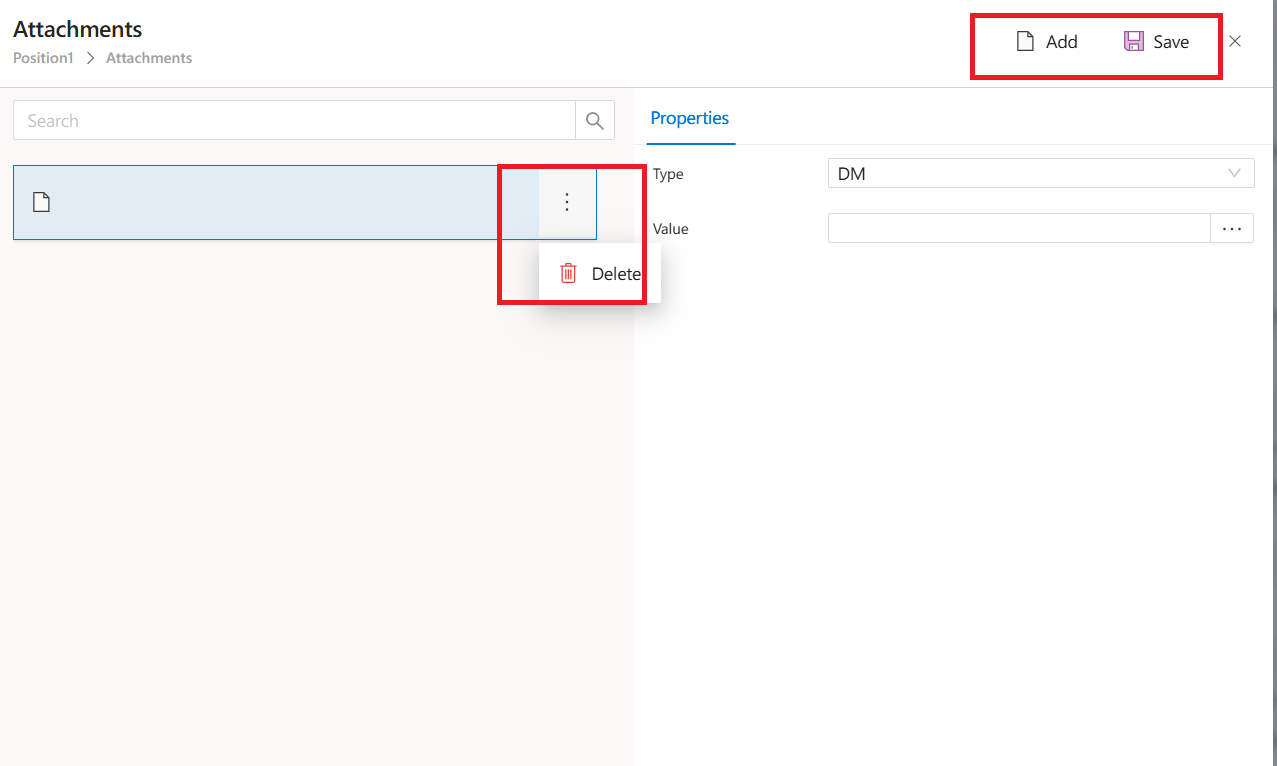
- Click the
Addbutton to define a new attachment that will be sent along with the email. - Once added, the attachment appears in the list and can be edited or removed.
Editing Existing Attachments
Edit Settings:Click on the attachment row to modify its settings.Remove Attachment:Click thetrash bin iconin the attachment row details to delete the attachment.
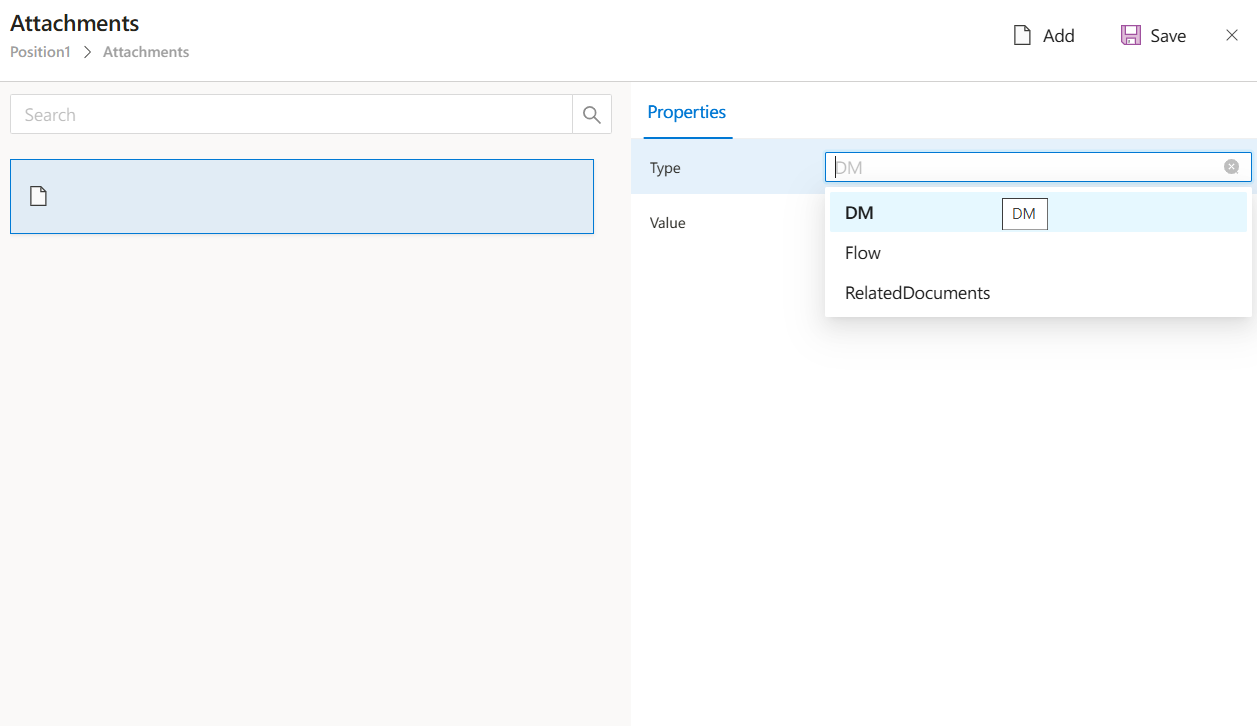
The Type field is used to specify the source location of the attachment file.
You can choose from the following options: DM, Flow, or RelatedDocuments.
Type Options
1. DM (Document Management)
- When
DMis selected, theValuefield allows you to pick a document from theDocument Managementsystem. - Select the required document from the provided list.
2. Flow
- When
Flowis selected, theIdof the file to be attached can be set either dynamically or statically. - You can use:
Liquid variables(e.g.,{{ Document1.DocumentId }},{{ Variable1.Value }})Static values(e.g.,56669)
3. RelatedDocuments
- When
RelatedDocumentsis selected, theDocumentfield becomes visible. - Select the
Documentobject that contains theRelatedDocumentscomponent. - After selecting the document, the
Related Documentsarea appears, displaying the list of related document objects within the selected form, allowing you to choose one or more.