And Operator
The And Operator object is used to merge multiple parallel branches or approvals in a workflow and only proceeds when all incoming branches have completed.
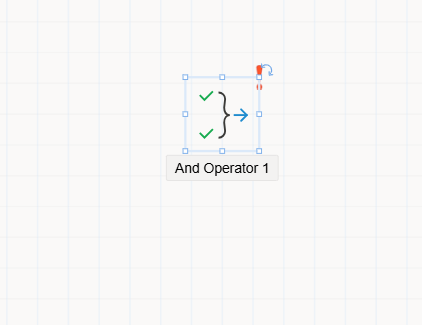
And Operator Object
The And Operator object is used in process flows where multiple parallel tasks or approvals are expected to converge at a single point before the workflow continues. This ensures that all parallel branches complete their tasks or approvals before the flow moves forward.
It is especially useful in scenarios such as:
- Sending tasks to multiple positions or groups in parallel.
- Awaiting all branches to return results before continuing to the next step.
How It Works
- The
And Operatorobjectwaits for all incoming connectionsto complete their executions. - Once
every branchconnected to the object has finished, the process is allowed to continue from the single outgoing path. - If even
oneof the incoming branches has not completed, the flowremains pausedat the And Operator.
Rules and Restrictions
- You can connect
multiple incoming paths(n inputs). - The object only allows
one outgoing path. - The merging logic is
synchronous: the next action occursonly after all branches return results.
Usage Steps
- Drag the
And Operatorobject from theToolboxonto theFlow Designercanvas. - Connect all relevant parallel branches to the object using arrows.
- Connect a single outgoing arrow from the object to the next step in the workflow.
- Click the object to configure its properties in the
Properties Viewerpanel.
Properties Panel Overview
When selected in the design view, the And Operator displays the following configuration tabs:
1. Appearance
Object Name: Internal system name for referencing in code.Caption: Display name shown in the UI.Is Lock: Prevents movement of the object during design.Size: Dimensions of the object (width and height).
2. Properties
- The And Operator does not require additional custom properties beyond connections.
3. Events
- Custom events can be handled via the
Eventstab. Event methods can be generated and customized with specific logic.